
Your account
1. Create your free account
Become a member
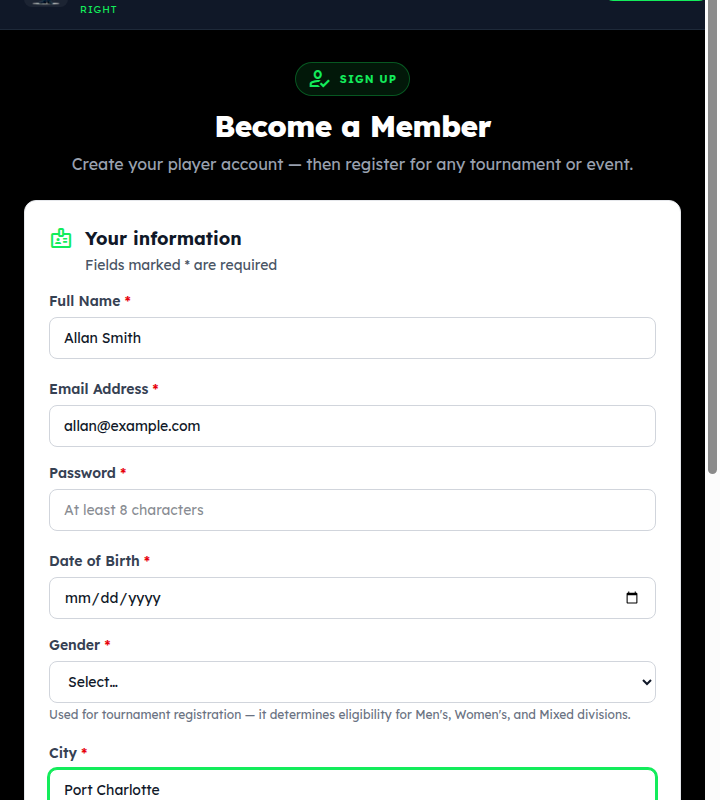
Go to tournament-maestro.com and tap Register in the menu (or any “Become a member” button). It takes about a minute:
- Name, email, password — the email is how you sign in and where confirmations go.
- Date of birth and gender — tournaments use them for age brackets and Men's / Women's / Mixed divisions. Tournament age is the age you turn this year.
- City, state, country — so nearby events and your state page find you.
Phone and PBRate ID are optional. Tap Create Member Account and you're signed in. Everyone starts as a player; organizing roles are requested on your account page (section 5).
2. Sign in & reset a password
Sign in
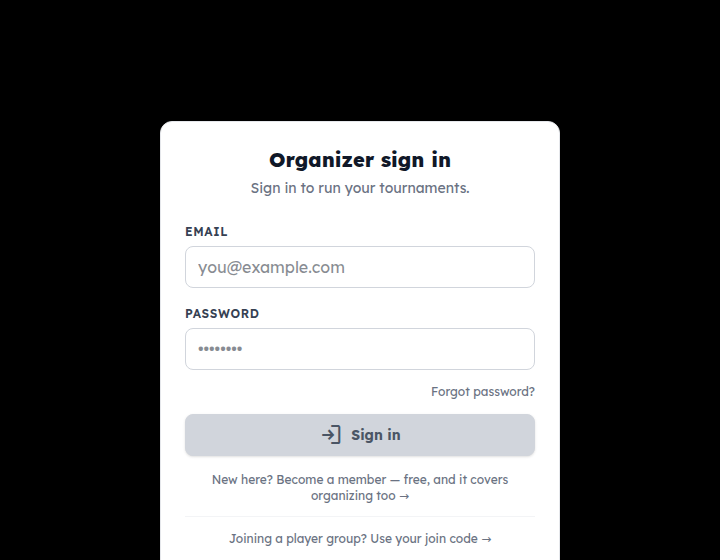
Tap Account or Dashboard at the top of any page; if you're signed out you get the sign-in form. Email and password, then Sign in. The same sign-in works whether you play or organize.
Forgot your password?
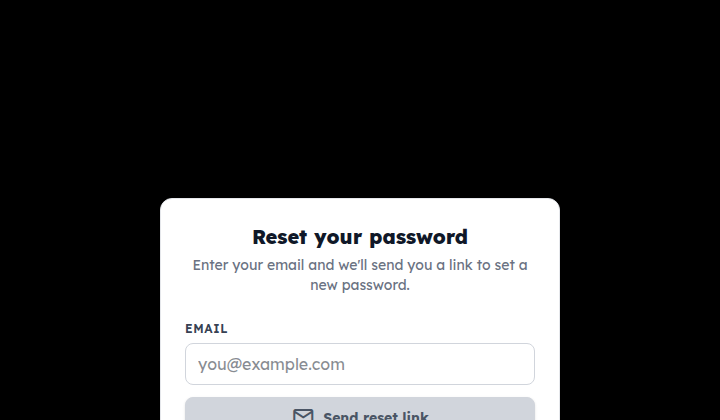
Tap Forgot password? on the sign-in page, enter your email, and tap Send reset link. Open the email (check spam if it's not there in a minute), tap the link, and set a new password. Then sign in with it.
3. Your account page: near you, yours, profile
The account page
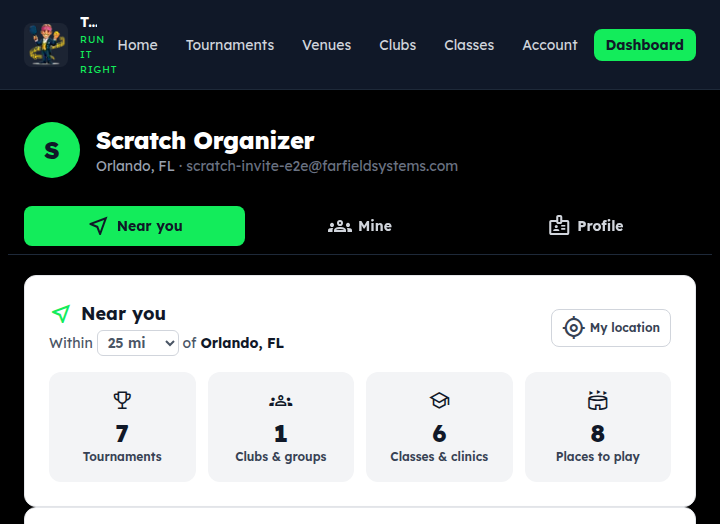
Account in the menu opens it — it's also where you land after signing in. Three tabs: Near you counts the tournaments, clubs, classes and places to play within 10–100 miles of your city (tap a tile to see them; My location uses your phone instead), Mine is your clubs, events, tournaments and saved ones, and Profile is your information, roles, DUPR and password. The page remembers which tab you were on.
Your clubs and club nights
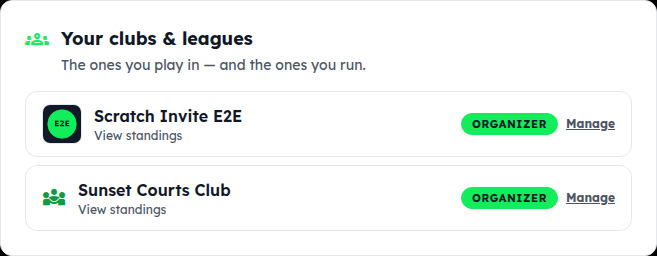
Your clubs & leagues lists every club you play in or run — tap one for its standings; organizers get a Manage link. Not in a club yet? The card has a Join a club with a code link. Your events below it is one list of everything on your horizon — club nights and activities, events you joined with a code, tournaments you registered for or saved, and the ones you run — each tagged manager, registered, joined or saved, soonest first. Tap a tag to filter; Month shows it as a calendar. Subscribe in your calendar under the list gives you a private link — add it to your phone or Google calendar once and it stays in sync by itself.
Your tournaments and saved ones
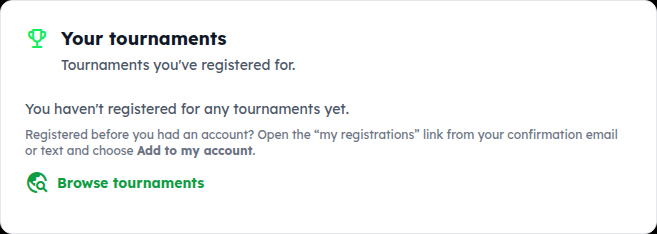
Your tournaments is everything you've registered for. Saved tournaments is the ones you've hit Save on while browsing, so you can come back when registration opens.
4. Keep your profile current
Your information
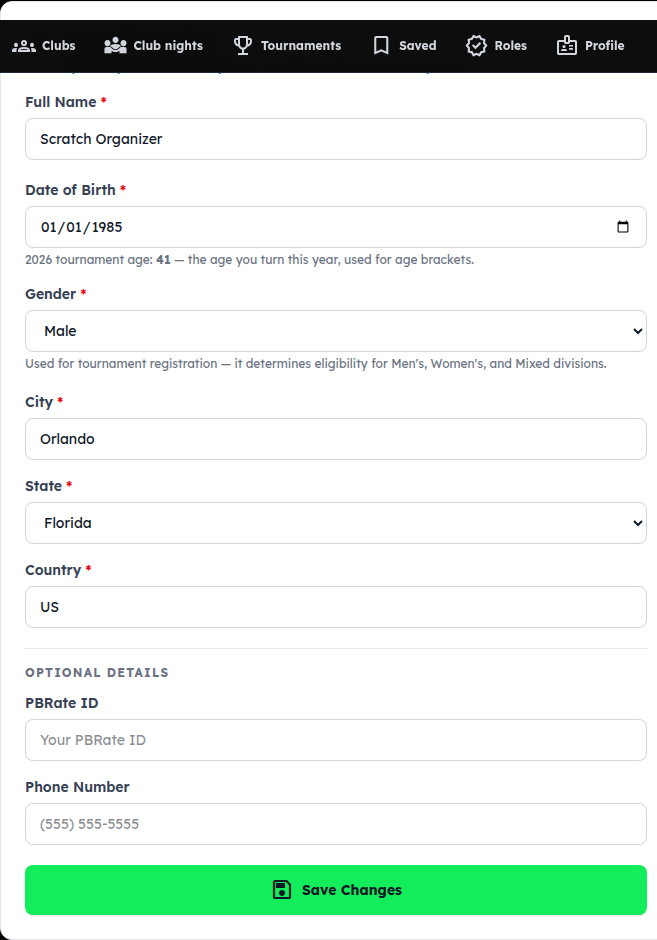
On the Profile tab your information shows as a summary; tap Edit to change it (so nothing changes by accident). Same fields as sign-up. Worth checking before a tournament: date of birth (the card shows the tournament age it computes), gender, and your phone number if you want texts when a match is called. Tap Save Changes, or Cancel to leave it as it was.
5. Request a role: manager, TD, organizer, coach
Ask for the role you need
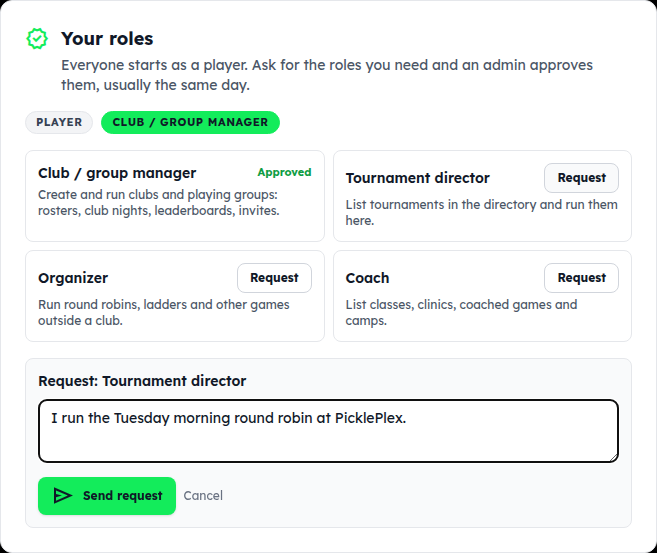
Everyone starts as a Player. To run things, tap Request next to the role:
- Club / group manager — start a club or group (rosters, club nights, leaderboards, invites).
- Tournament director — list tournaments in the directory and run them.
- Organizer — run round robins, ladders and other games outside a club.
- Coach — list classes, clinics, coached games and camps.
Add a line about what you run and tap Send request. An admin approves it, usually the same day; the card shows Pending until then and Approved after. You can cancel a pending request.
6. Connect DUPR
Connect DUPR
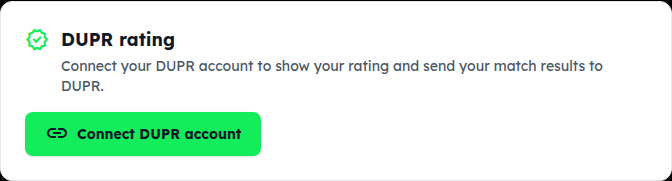
Tap Connect DUPR account and sign in to DUPR when it asks. That's it: your doubles rating shows on your account and on club rosters, organizers can seed ladders by it, and when an organizer sends a night's results to DUPR your matches count toward your rating.
Only you can connect your DUPR — an organizer can't type your DUPR ID for you. Think a sent result is wrong? See Support for the correction process.
7. Change your password
Change it in place
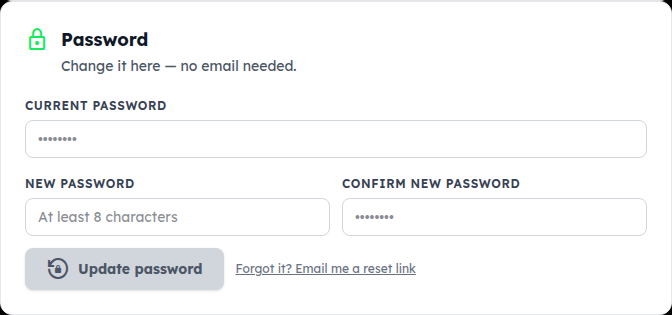
Current password, new password twice, Update password — no email needed. If you don't remember the current one, Forgot it? Email me a reset link does the same as section 2. Sign out is at the bottom of the page.
Something not covered? Contact support or go back to the guide home.