
Classes & clinics
1. Start a listing
Who can list, and where to start
Listing a class needs one of: the coach role, or running a club or group (owner or co-organizer). Ask for the coach role under Account → Roles; it's approved within a day.
Then: Dashboard → the Class / Clinic card.
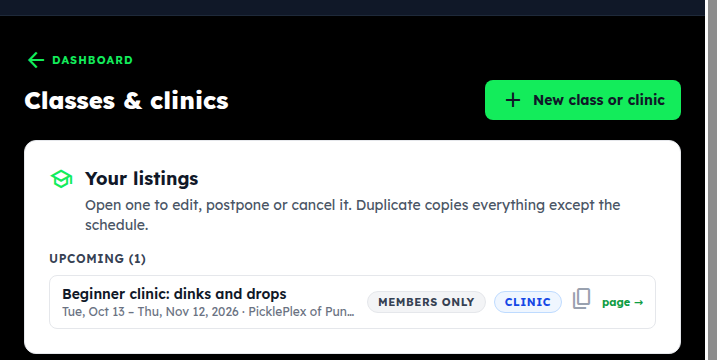
Your classes hub
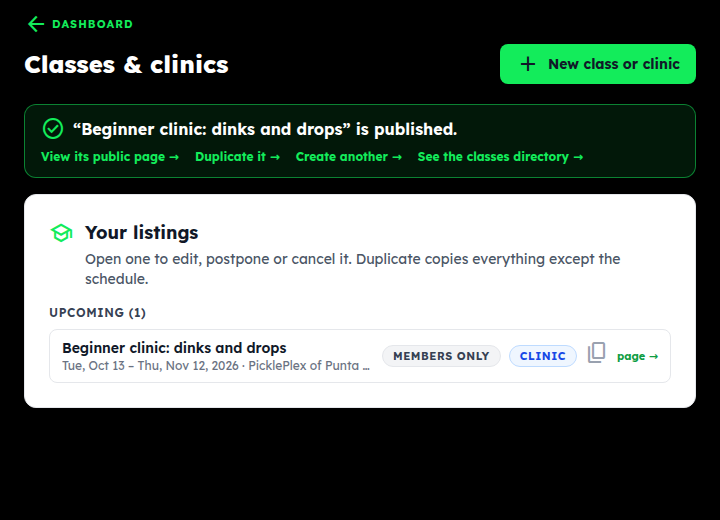
The hub lists everything you've published. Tap New class or clinic.
2. What & where: title, type, cost, venue
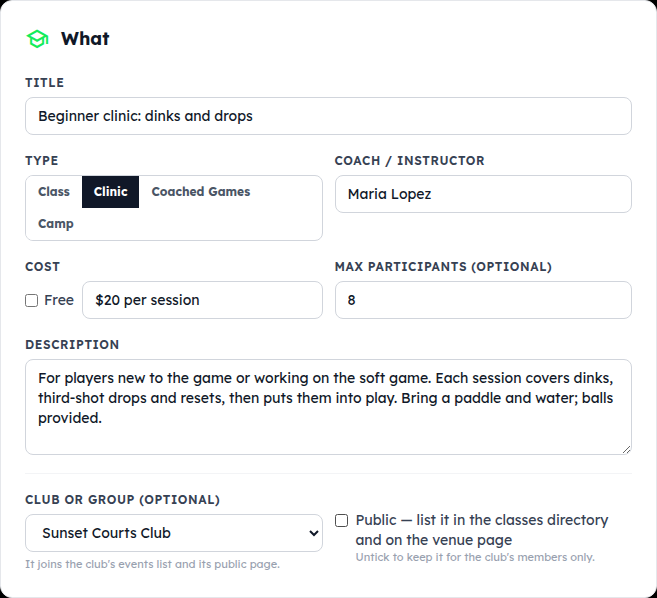
Title, type, coach, cost
- Title — what players will see in the directory, e.g. “Beginner clinic: dinks and drops”.
- Type — Class, Clinic, Coached Games or Camp. Players can filter the directory by it.
- Coach / instructor — the name on the listing (yours by default).
- Cost — tick Free, or type it as you'd say it: “$20 per session”, “$10 members / $15 guests”.
- Max participants — optional, shown to players as a guide.
- Description — who it's for, the level, what you'll work on, what to bring.
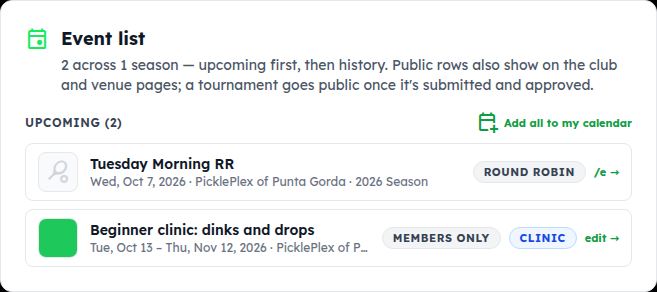
Club or group is optional. Pick one and the class joins that club's event list and public page — and a Public box appears: leave it ticked to list the class for everyone, untick it to keep it for the club's members only.
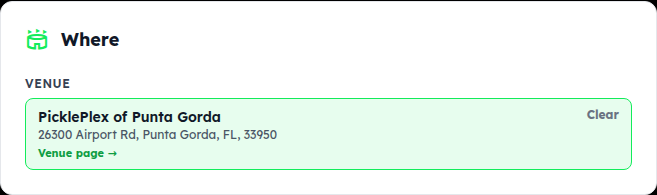
Where
Type the venue name and tap it. The class then shows on that venue's page and players get the address and directions. Not in the directory yet? + New venue adds it with a name and address.
3. Schedule sessions & repeat weekly
Sessions and days
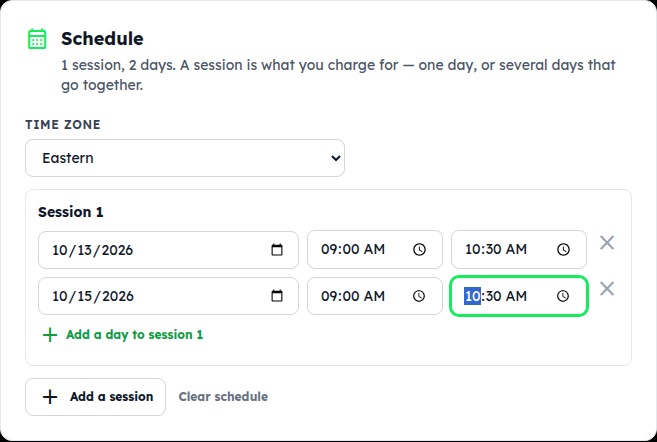
A session is what you charge for. It can be a single day, or several days that go together (a Tuesday-and-Thursday week, a three-day camp). Set the date, start and end for the first day; tap Add a day to session 1 for more days in the same session; tap Add a session for a separate one. Check the time zone at the top — it defaults to Eastern.
Repeat it weekly
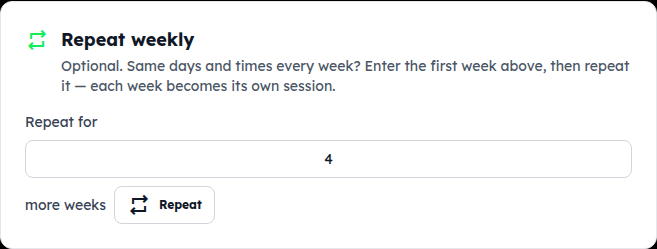
Same days and times every week? Enter the first week as session 1, type how many more weeks, and tap Repeat. Each week becomes its own session, so a four-week clinic that meets Tuesday and Thursday comes out as 5 sessions, 10 days — and you can still edit or remove any single one.
4. Sign-up, contact & flyer
How players reach you
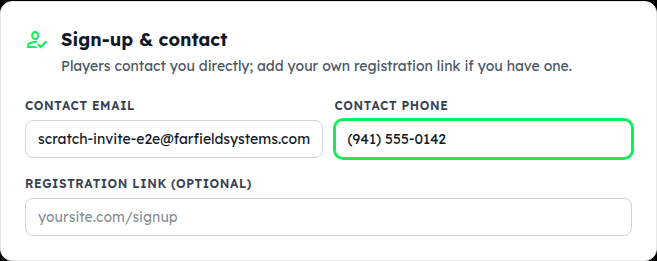
There's no sign-up form inside the app for classes. Players see your contact email and phone on the listing and get in touch; if you already take registrations somewhere (your own site, a booking page), paste it as the registration link and the listing gets a Sign up button.
Flyer or photo
Optional. Upload your flyer or a photo (it's shrunk before upload); without one, the listing uses the venue's photo.
5. Publish & share the listing
Publish
Tap Publish listing. You're back on the hub with the new listing and quick links: its public page, duplicate it, create another, or the directory. Classes don't wait for approval — a public one is live in the directory right away.
What players see
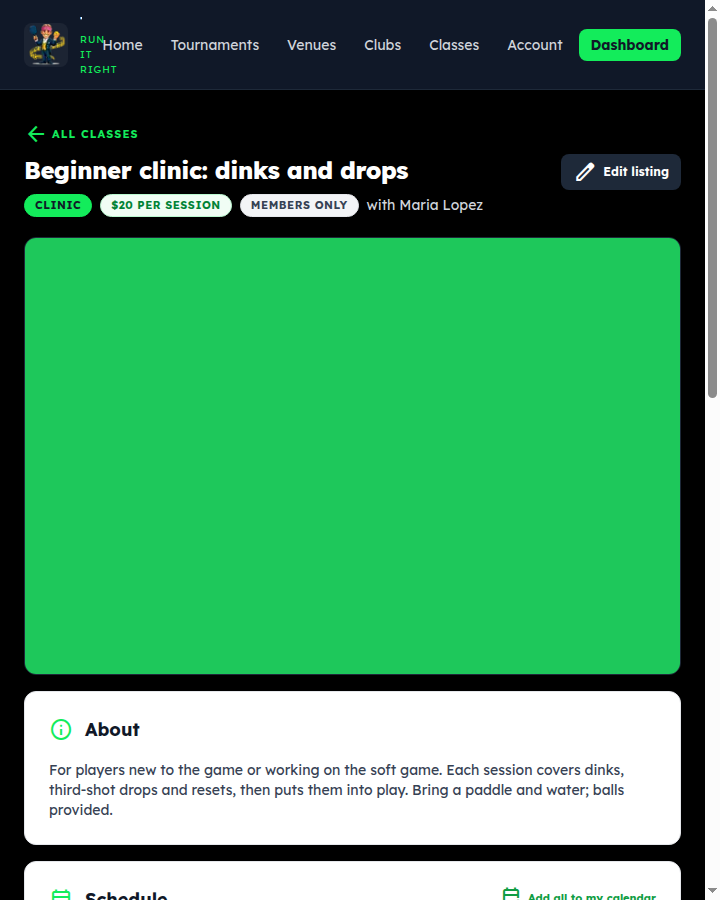
The listing page: type, cost and coach up top, your description, the full schedule (with Add all to my calendar), the venue with directions, and how to sign up. Share this link anywhere.
6. Edit, duplicate, postpone or cancel
Edit, or duplicate for next month
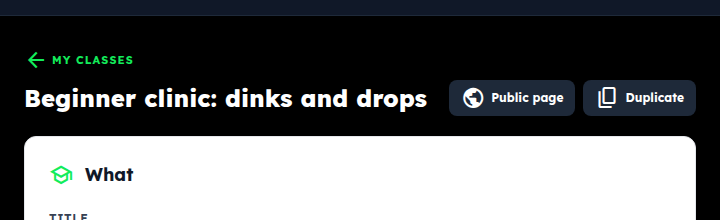
Open a listing from the hub to change anything — same form as creating it — and tap Save changes. Duplicate copies everything except the schedule, which is the fast way to run the same clinic again with new dates.
Postpone or cancel
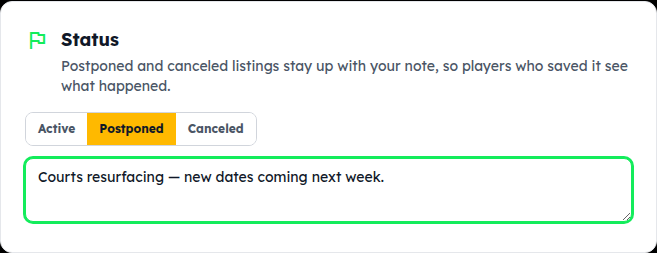
At the bottom of the edit page, Status: mark it Postponed or Canceled and type a note (“Courts resurfacing — new dates next week”). The listing stays up with a banner so players who saved it see what happened. Set it back to Active when you have new dates. Delete listing removes it for good.
Where it shows up
A public class is in the Classes directory and on its venue's page. One attached to a club is also on the club's Event list and public page, where members can add it to their calendar. The club page row has an edit → link straight to the listing.
7. Players: find a class & sign up
Find a class and sign up
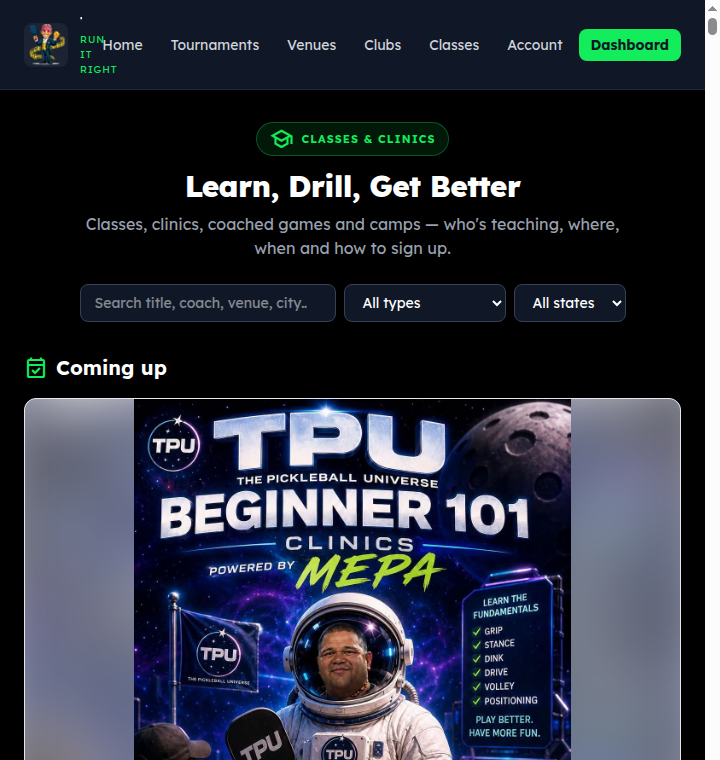
Classes in the top menu (or the bottom bar on a phone) lists what's coming up. Filter by type — Class, Clinic, Coached Games, Camp — and by state. Open one for the schedule, the venue and directions, and the cost.
To sign up, use the Sign up button if the coach has one, or the contact email / phone on the listing. Add all to my calendar puts every session on your phone. No account needed to browse; a members-only class only shows to members of that club.
Something not covered? Contact support or go back to the guide home.