
Clubs & groups
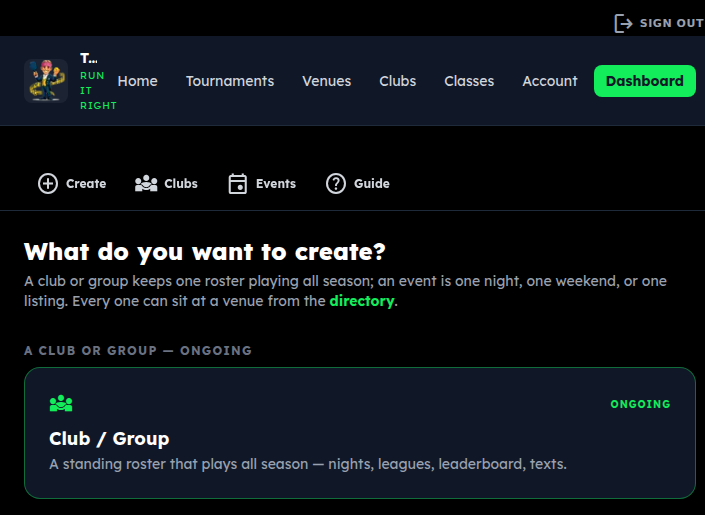
1. Start your club or group
Open the Dashboard
Go to tournament-maestro.com and tap the green Dashboard button at the top right. If it asks you to sign in, use your email and password.
The bar at the top of the Dashboard has three buttons. Tap Clubs & groups.
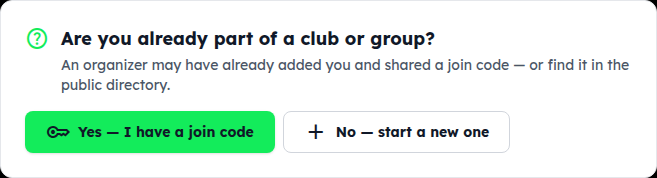
Choose “start a new one”
The page asks whether you already belong to a club. You're making one, so tap No — start a new one.
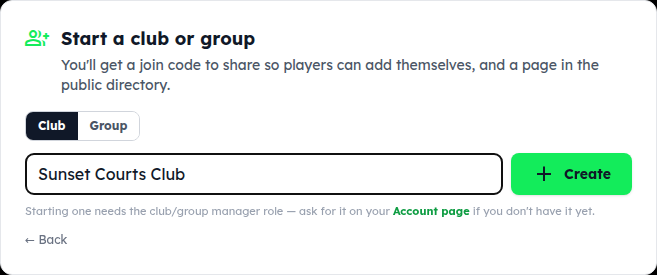
Name it and tap Create
Pick Club (an organized program with a home venue) or Group (a regular crew that meets to play) — it only changes the wording. Type the name and tap Create.
Don't see the Create card? Starting a club needs the club/group manager role. Ask for it under Account → Roles and it's approved within a day.
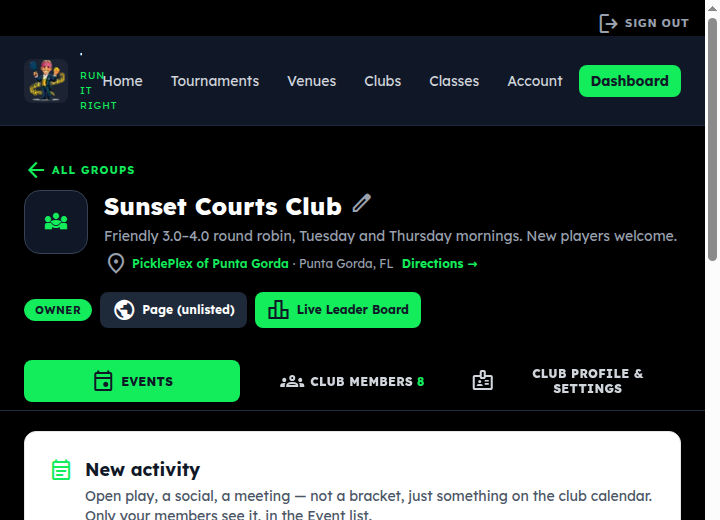
Meet your club page
Your club page opens. Three tabs across the top do everything: Events (play), Club members (your players) and Profile & settings (how the club looks, join code, options). The tab row stays at the top while you scroll.
The two buttons under the name — Page and Live Leader Board — are the links you share with players.
2. Add your members
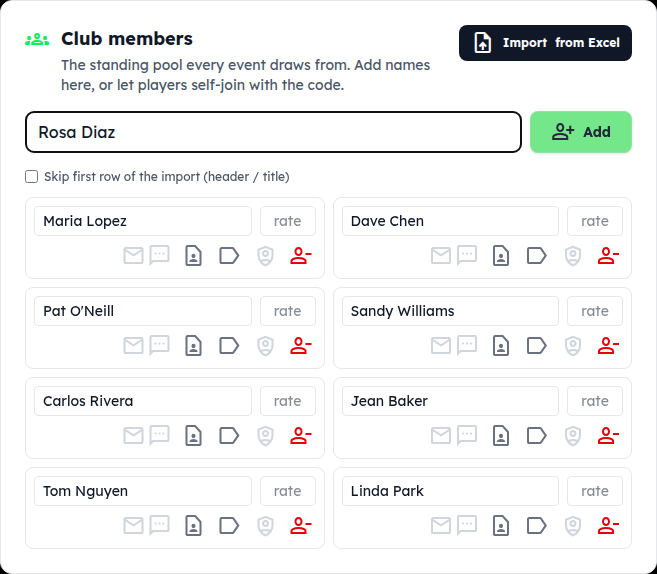
Type names, or import a spreadsheet
Tap the Club members tab. Type a name in Add a member and tap Add(or press Enter). Repeat.
- Have a list already? Tap Import from Excel. One column of names works; so does a sheet with name, email, phone, city and state columns (a header row is matched by name). Email and phone go in as contact details — tick consent on each row before texting anyone.
- Let players add themselves: share the join code (section 3). Anyone who joins with it lands here.
Members with an account show a Member badge: their name, city and state come from their own profile and the DUPR rating from DUPR, so you can't edit those — they can, on their Account page. Names you typed in yourself stay editable, with an optional rate box.
Members are never deleted — person_remove moves someone to an Inactive list (their results stay on the leaderboard), and Reactivate brings them back.
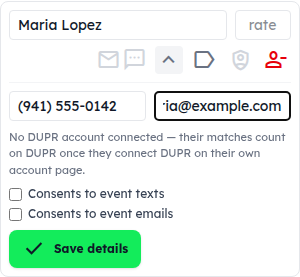
Add a phone or email so you can reach them
Tap the contact_page icon on a member's row. Enter a mobile number and/or email and tick Consents to event texts / emails — the app only ever messages people who have said yes. Tap Save details.
The little mail and text icons on each row turn green when that person is reachable. Players who join with the code fill this in themselves.
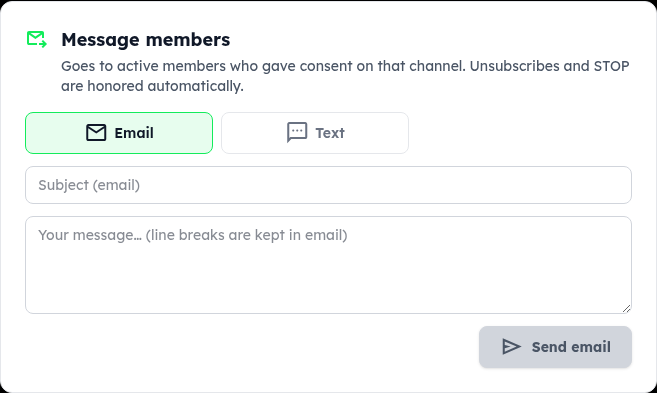
Message the whole group
Below the members list, Message members sends one email or text to everyone who gave consent — court closed, rain, a reminder. Texts are kept to one message; longer notes go by email.
3. Profile & settings: venue, logo, join code
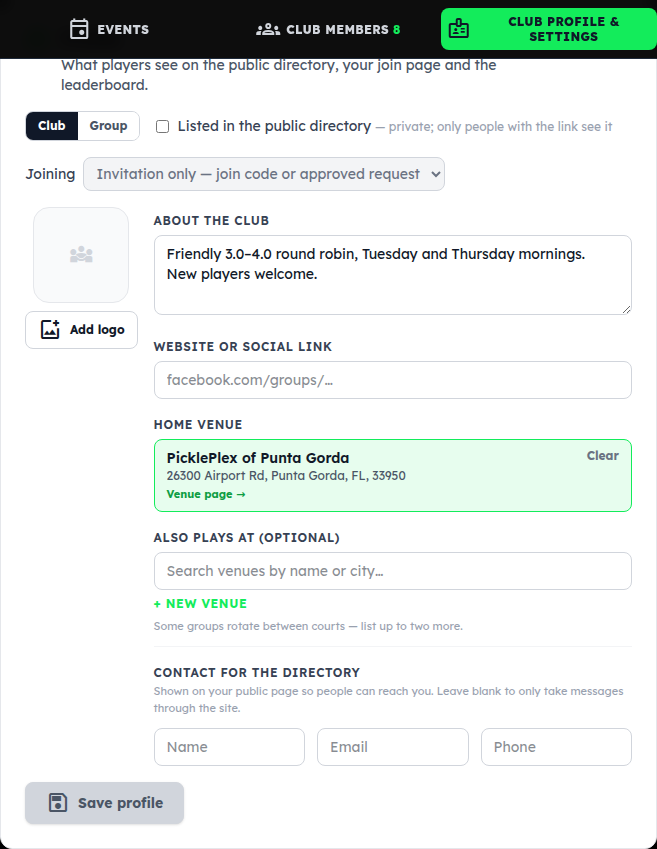
Set your home venue (and a logo if you have one)
Tap Profile & settings. The one thing worth doing now is Home venue: type the name of your courts and tap it when it appears. Every new event then starts with the location filled in and players get the address and directions. If your courts aren't listed, tap + New venue.
- Listed in the public directory — ticked, anyone can find your club under Clubs. Untick it for a private club that only people with the link can see.
- Joining — Open lets anyone join from your page; Invitation only means your join code, or you approve each request.
- Logo — optional, but it shows on every event in your list and on the public page.
Tap Save profile when you're done.
Share the join code
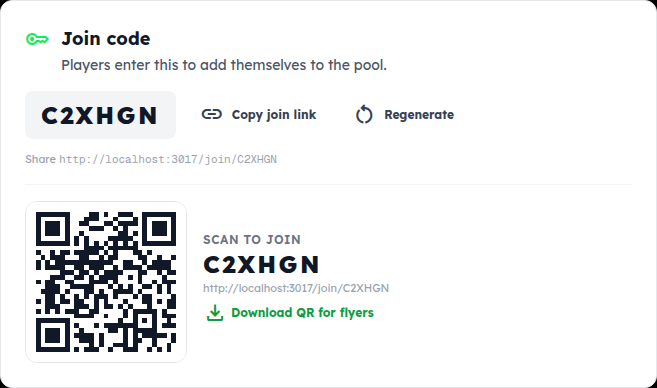
Every club has a six-character join code. Players enter it on the site (or just open the link) and add themselves to your members list with their own phone and email. Tap Copy join link to paste it into a text, or Download QR for flyers for the court fence.
Regenerate makes a new code and retires the old one — use it if the code got around further than you wanted.
Optional: send results automatically
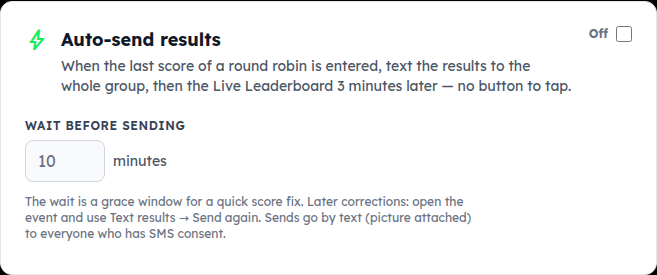
Switch on Auto-send results and, a few minutes after the last score of a night goes in, the results and the updated leaderboard are texted to the whole group — nothing for you to press. The wait is a grace period for fixing a typo first.
4. Run a round robin night
Pick who's here and tap Create event
Tap the Events tab and find the New event card.
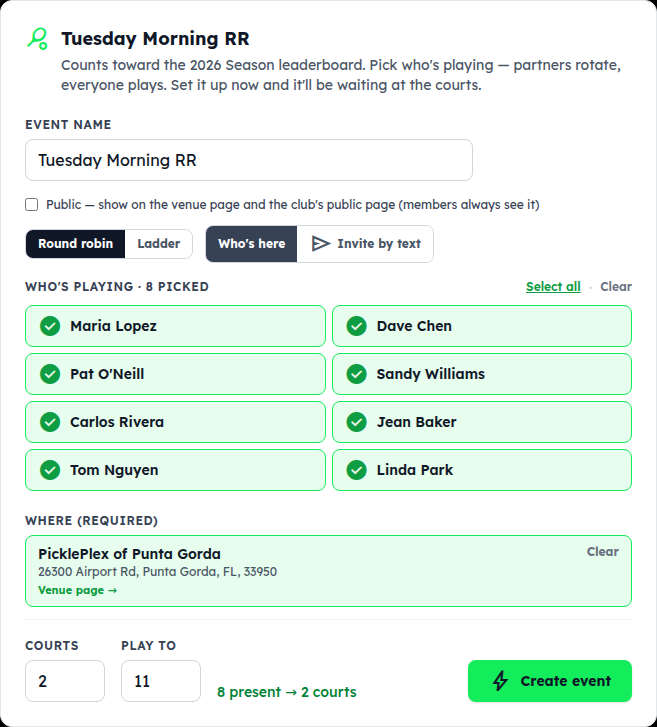
- Event name — e.g. “Tuesday Morning RR”.
- Leave Round robin and Who's here selected.
- Under Who's playing, tap each player who is here tonight (they turn green). Select all if it's everyone.
- Where is already your home venue. Courts fills in one court per four players — change it if you have more or fewer. Play to is the points per game.
Tap Create event. The night's page opens with every round already laid out.
Fewer than four picked? The button reads Create open event: the night is created with empty seats you fill at the courts (or by text — section 6).
The night's page
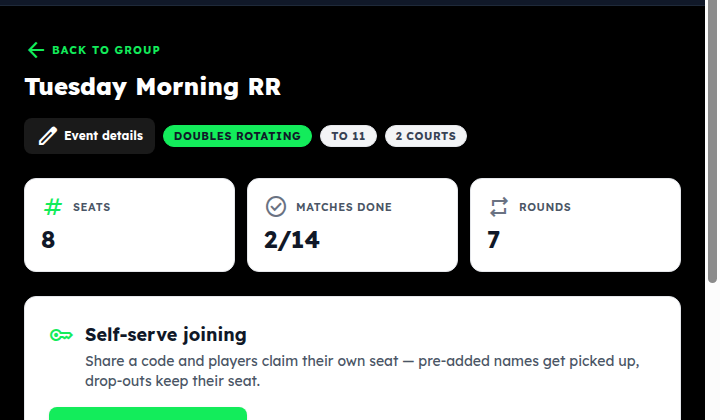
At the top: how many seats, matches done, and rounds. By default everyone partners with everyone once; the rounds come from the player count.
- Turn on join code lets walk-ups claim a seat themselves from their phone.
- Invite players texts members who aren't in yet.
- Back to group returns to your club page; the night stays in your Event list.
Late arrivals and no-shows
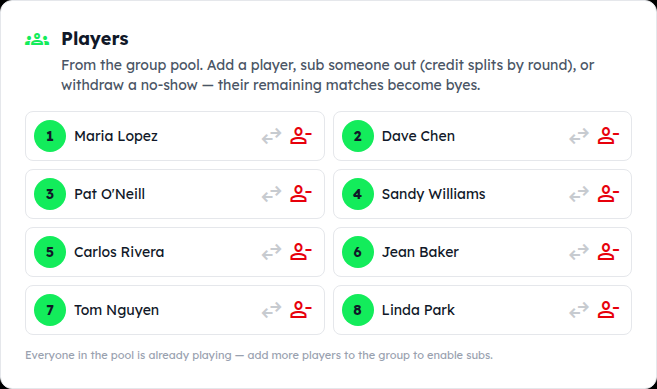
The Players card lists tonight's seats. Someone shows up late? Add them from the pool. Someone has to leave? Tap swap_horiz to sub another member into their seat (credit splits by round), or person_remove to withdraw them — their remaining matches become byes and everyone else keeps playing.
Before the first score you can also change the roster size outright, and Set rounds (under Standings) shortens or extends the night.
5. Enter scores at the courts
Enter each game's score and tap Save
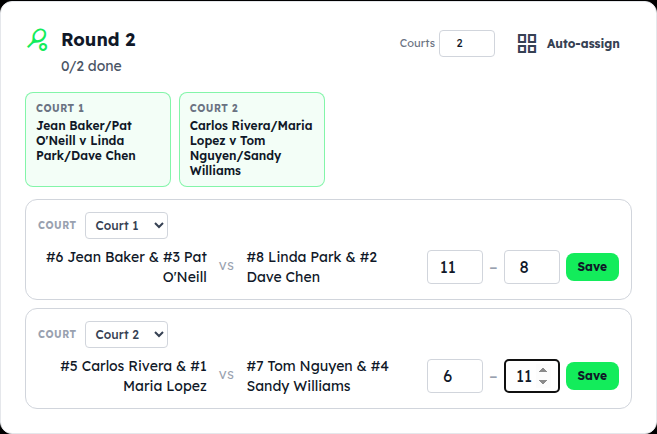
Scroll to the round. Each match shows the two teams and the court. Type both scores in the boxes and tap Save. The round tabs (Round 1, Round 2 …) move you between rounds; the court cards at the top of a round are what you read out to the players.
Typo? A saved score shows Update and undo. Entered it on the wrong match? Use undo and type it on the right one.
Standings update as you go
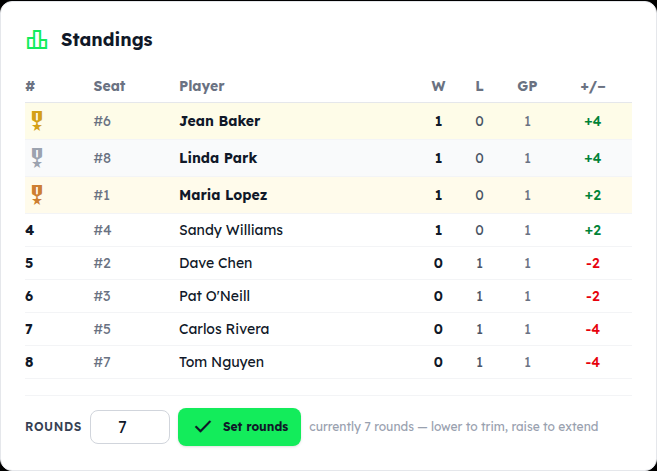
The Standings card on the night's page ranks everyone by wins, then point differential, after every save. When the last score is in, the night is done — there is nothing to close.
Results go to the group by text automatically if you switched that on (step 10); otherwise, back on your club page the Leaderboard card has a Text standings button.
6. Invite players by text
Set a cap, pick who to text, Create & send
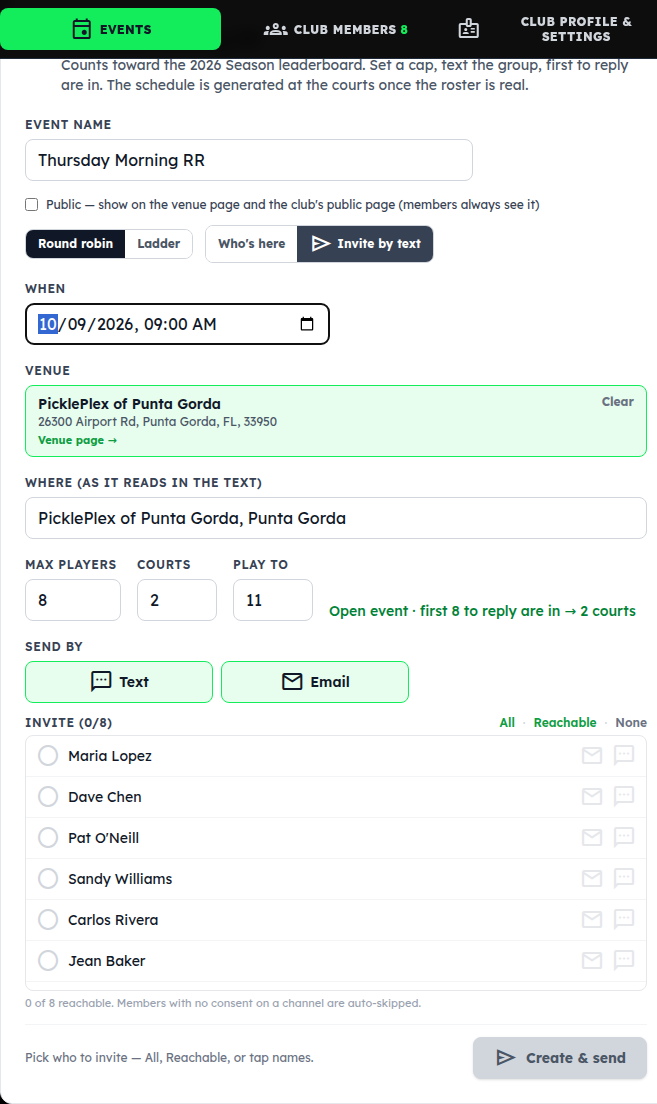
On the New event card choose Invite by text instead of Who's here. Set When, check Where, set Max players (courts follow it), choose Text and/or Email, and tap the members to invite — All or Reachable picks the whole list.
Tap Create & send. Each member gets a message with an I'm in link; the first ones to tap it claim the seats until the cap is reached. Anyone without a phone or email on file is listed as skipped so you can call them. Open the event any time to watch the RSVPs come in; generate the schedule once you see who's playing.
7. Add activities & other formats
Put open play, socials and meetings on the calendar
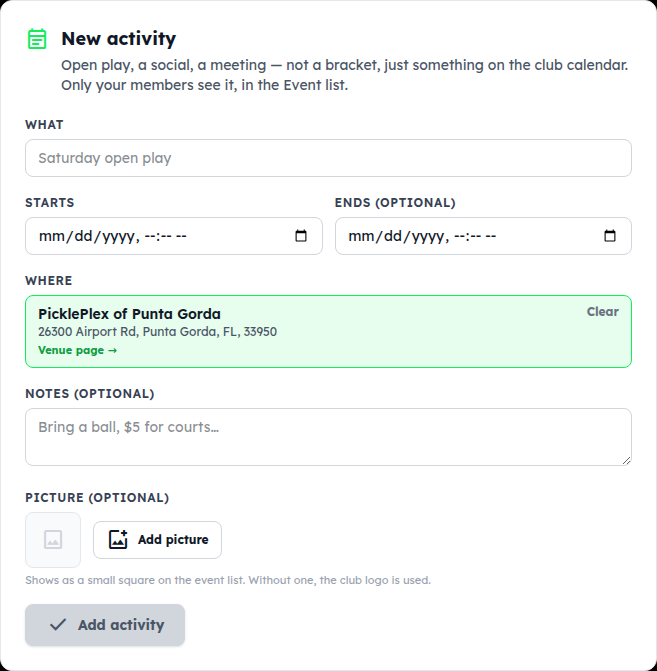
The New activity card at the top of Events is for anything that isn't a bracket: open play, a social, a meeting. Give it a name and a start time, optionally a picture, and tap Add activity. It appears in your Event list and members can add it to their calendar. Only your members see activities. On the club page, Coming up has a Month view — a calendar grid of every night, activity, class and tournament; tap a day to see what's on.
Tournaments, ladders, MLP and classes
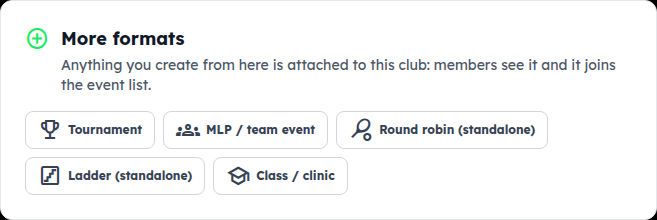
More formats starts a tournament, an MLP team event, a standalone round robin or ladder, or a class attached to your club. Members see it and it joins your Event list. (A ladder night — king of the court — is also a choice on the New event card.)
8. Event list, seasons & leaderboard
Everything you've run, in one list
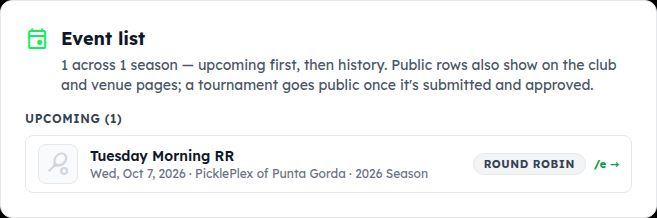
The Event list shows what's coming up and what's been played, newest first, across every season. Tap a row to open it. The /e → link is the public results page for that night; the calendar icon adds a dated event to a phone calendar.
Seasons take care of themselves
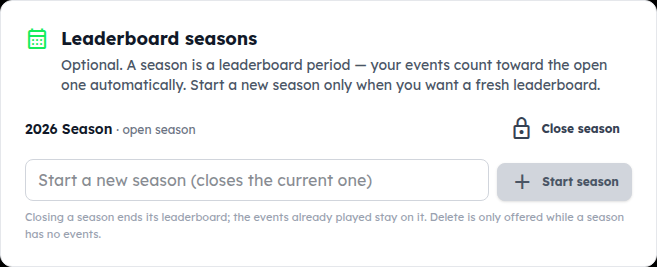
A season is a leaderboard period. Your first event starts one automatically (named for the year) and every night after that counts toward it. You only come here when you want a fresh leaderboard — type a name and Start season; the old one stays viewable.
The leaderboard
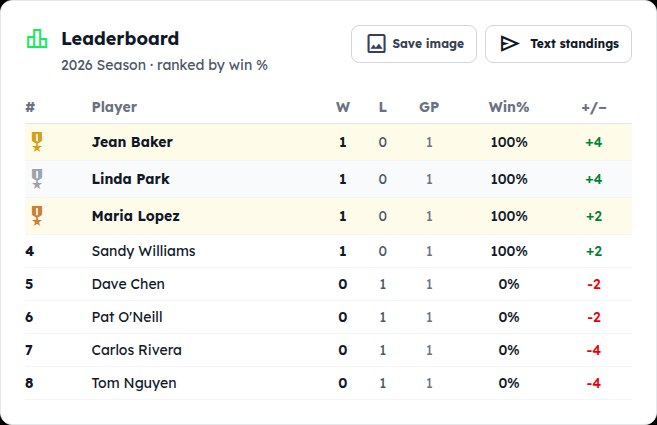
Below the seasons, the Leaderboard card ranks the season by win %. Save image gives you a picture of it for a group chat; Text standings sends it to the members.
The Live Leader Board page
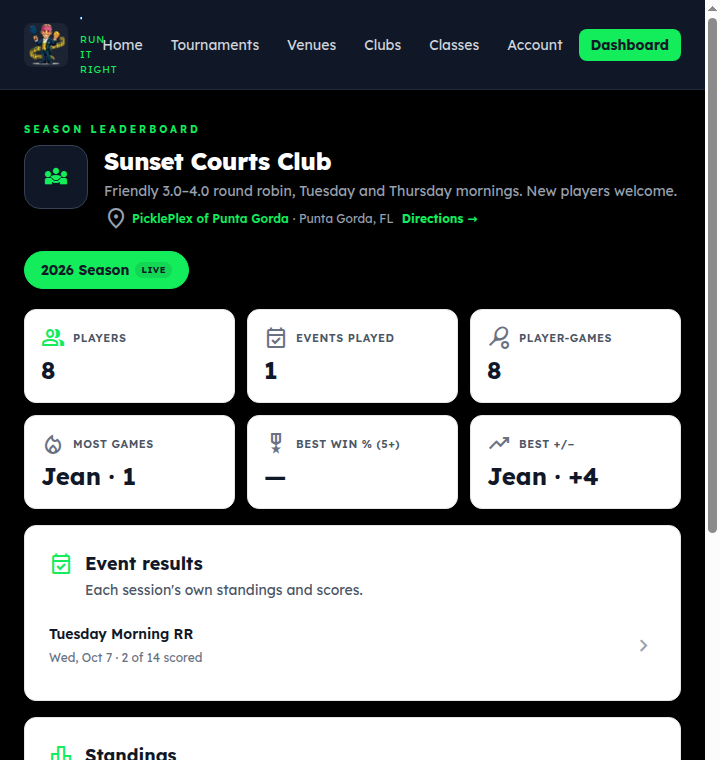
The Live Leader Board button at the top of your club page opens the public standings. Share that link once — it stays current all season.
9. Players: join a club & see results
Join with a code or QR
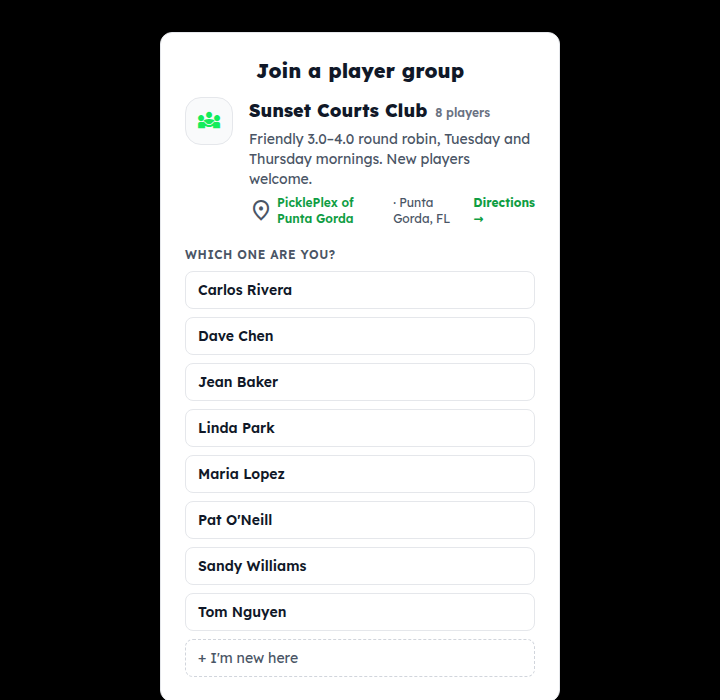
Your organizer gives you a six-character code, a link, or a QR on a flyer. Open the link (or go to tournament-maestro.com/join and type the code). If the organizer already typed your name, tap it under Which one are you?; otherwise tap + I'm new here. Joining needs a free member account — if you don't have one yet, Become a member & join takes you through the one-minute sign-up and brings you straight back. Then enter your mobile and tick the consent box if you want invites by text.
Invites, results and standings
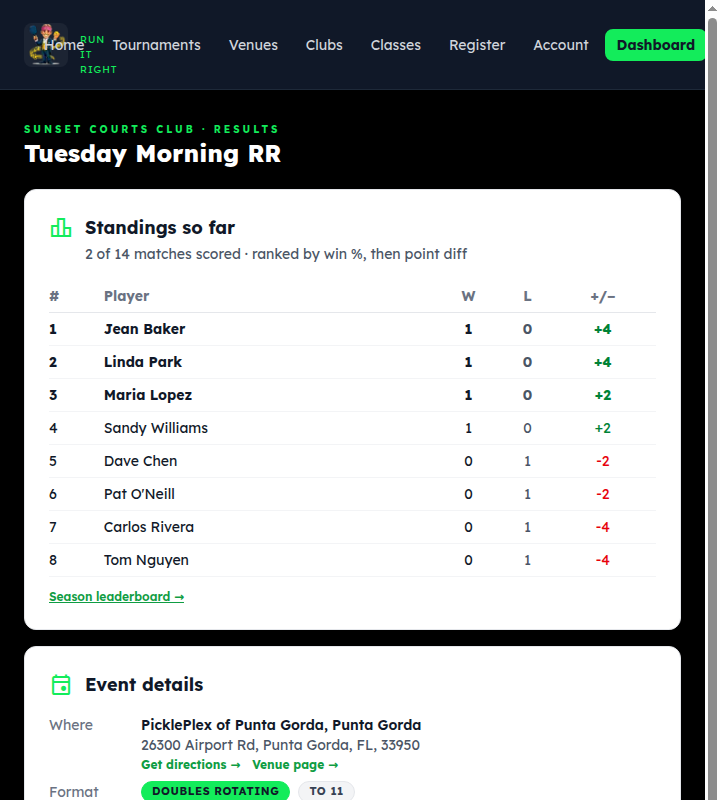
A text invite has an I'm in link — tap it and you have a seat (first come, first served up to the cap). After a night, the results text links to a page like this with the standings and every match; the club's Live Leader Board link shows the season. No sign-in needed for either.
Want your games to count on DUPR? Create an account, connect DUPR under Account, and ask your organizer to send results.
Something not covered? Contact support or go back to the guide home.