
Tournaments
1. Create the tournament
Dashboard → Tournament
Sign in, tap Dashboard (top right), and pick the Tournament card.
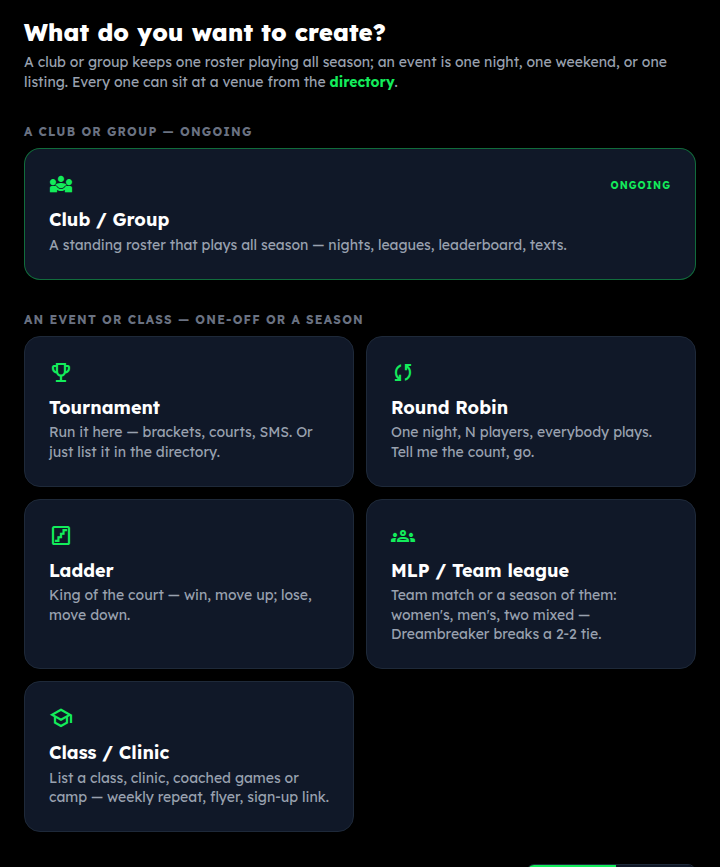
Name it
The name is all it asks for. Everything else comes next, on the overview. Tap Create.
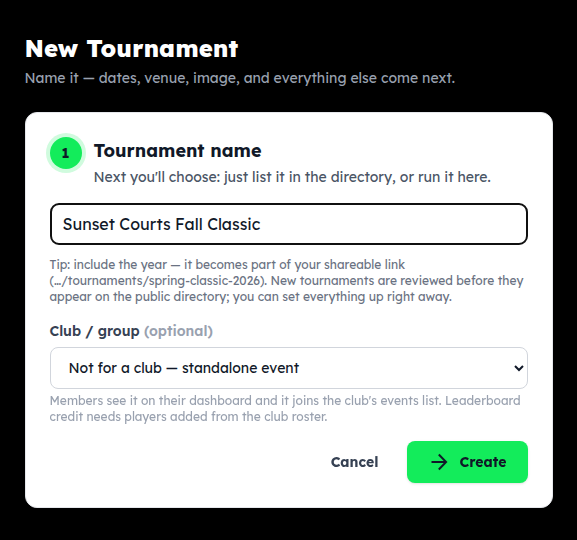
Just list it, or run it here?
The overview opens with one question. Just list it if the tournament runs on another site or offline — you fill in the details and a link, and it appears in the directory. Run it here for the full production: registration, divisions, brackets, court boards, live scoreboard. Both are free and you can switch later.
This guide follows Run it here.
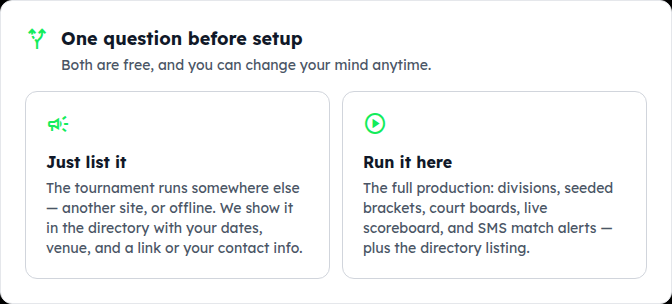
The setup checklist
Setup progress on the overview is your map. Steps unlock in order: divisions need the details done, registrations and teams need a division, the schedule needs at least two teams. Courts are optional. The same pages are in the tab row at the top of every tournament screen.
2. Fill in event details & policies
Fill in the event details
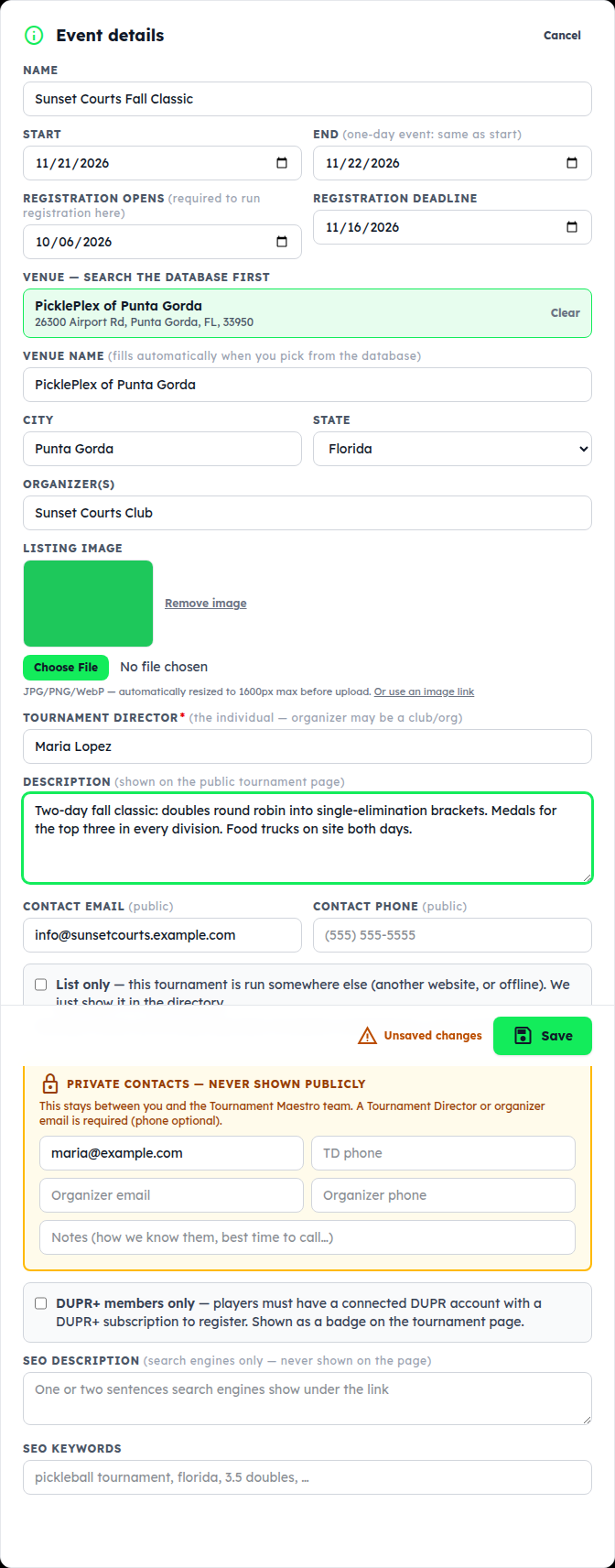
On the overview, tap Edit on the Event details card. To be listed you need:
- Start and end dates (one-day event: same date twice).
- Registration opens / deadline — players can only register inside this window.
- Venue — search the database first; picking one fills the name, city and state and gives players directions. Not there? + New venue.
- Organizer (a club or company is fine) and the Tournament Director — a person, with an email we can reach.
- Listing image — your flyer or a photo. It's shrunk before upload.
Description, public contact, DUPR+ requirement and the SEO fields are optional. Tap Save.
Policies & event info
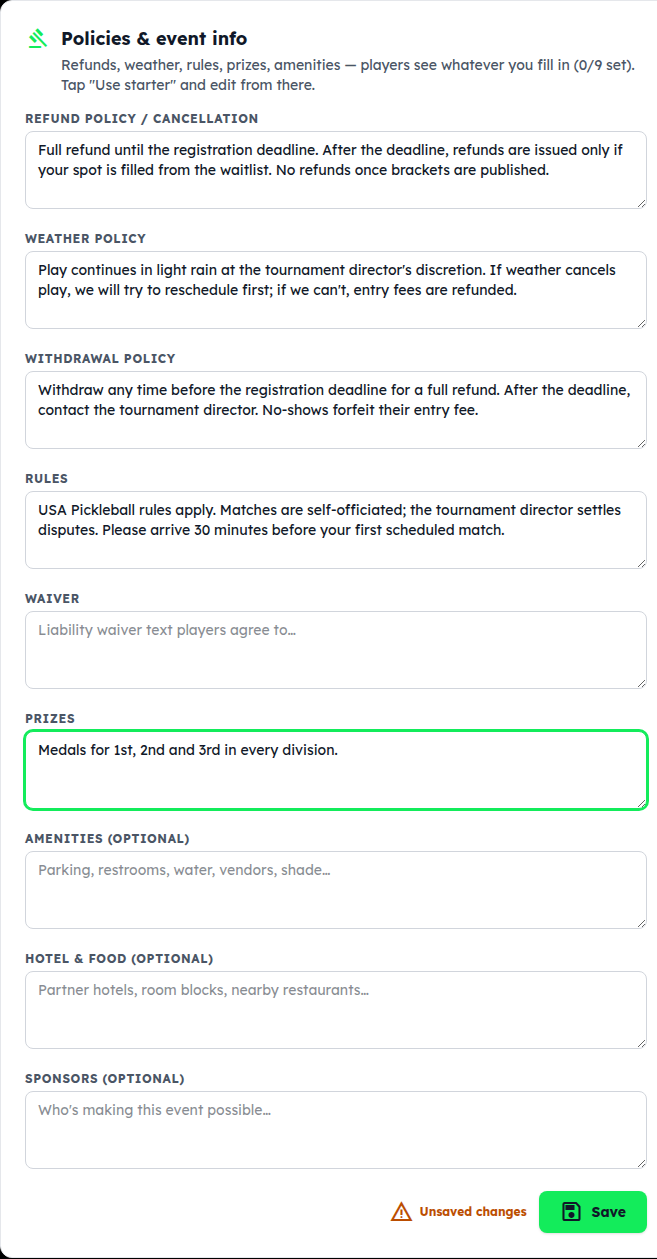
Lower on the overview. Refund, weather, withdrawal and rules are required for the listing; tap Use starter on each to drop in a sensible default and edit from there. Prizes, amenities, hotel and sponsors are optional — anything you fill in shows under Event information on the public page. Tap Save.
3. Add divisions
Add each division
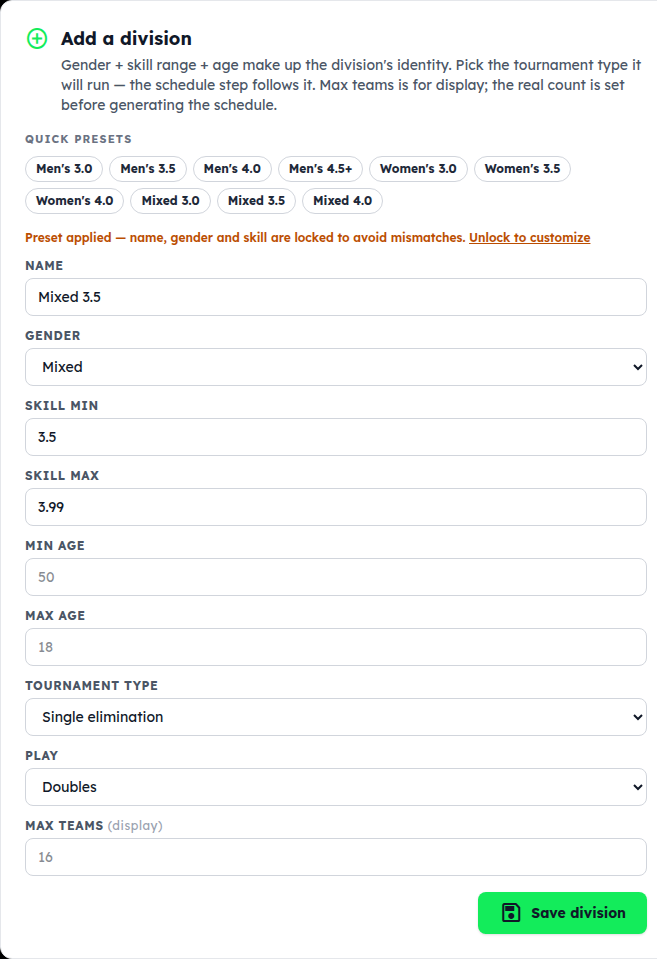
Open Divisions from the tab row. Tap a preset (Men's 3.5, Mixed 4.0 …) and the name, gender and skill range fill in; change anything you like. Then choose the tournament type — single elimination, double elimination, rotating-partner round robin, set-partner round robin, or pool play into a bracket — and Doubles or Singles. Tap Save division.
Max teams is shown to players as a guide; it doesn't close registration by itself.
Your divisions
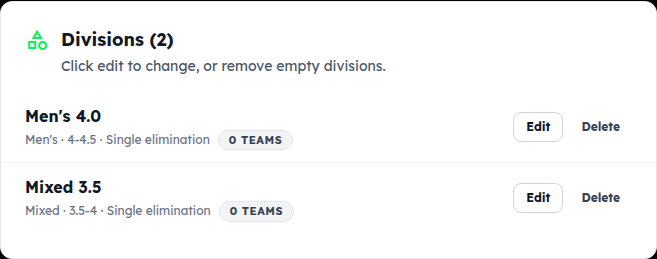
Each division shows its format and how many teams are in it. Edit any time; Delete is only offered while a division is empty.
4. Submit the listing for approval
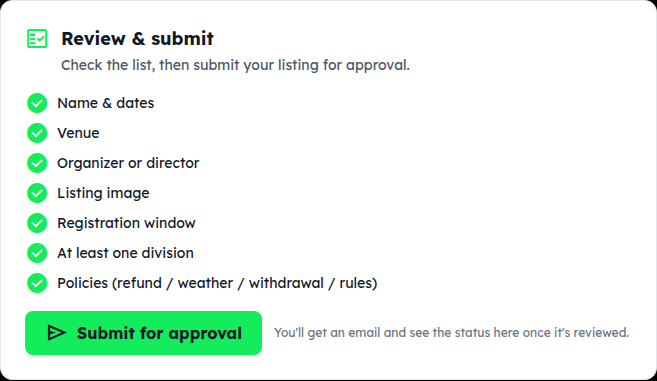
Check the list, then submit
Back on the overview, Review & submit ticks off what the listing needs. When every line has a check, tap Submit for approval. A platform admin reviews it (usually within a day); you get an email, and the status on the Event details card changes from Pending to Approved. Until then the tournament is hidden from the directory — but your share link works, so you can preview it.
Edit something after approval and the listing is re-checked automatically.
What players see
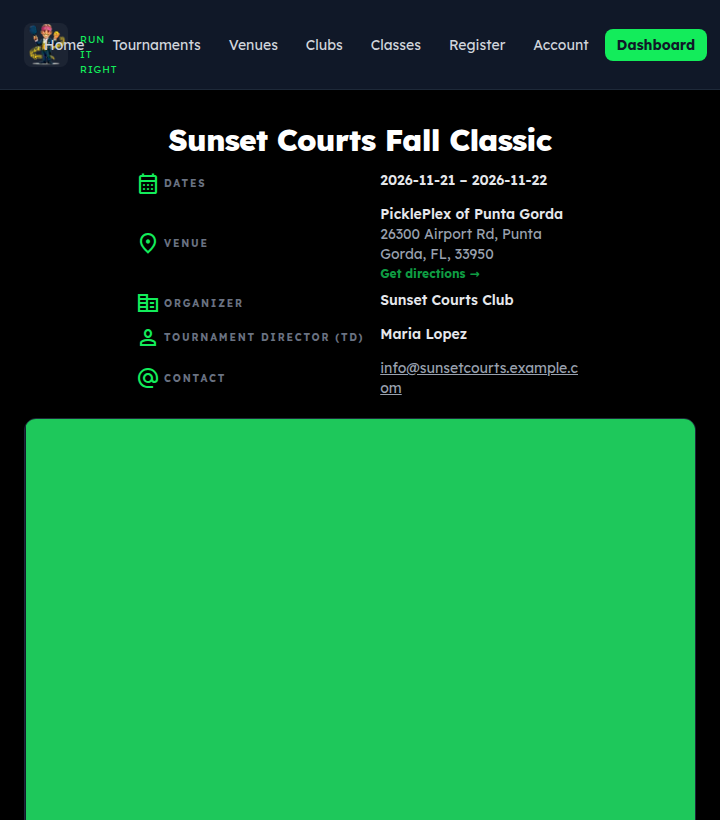
Public page (top right of any tournament screen) opens the listing as players see it: dates, venue and directions, who's running it, your description, divisions, and the policies. Once approved, it's also on the Tournaments directory and your state page.
5. Take registrations
Players register from the public page
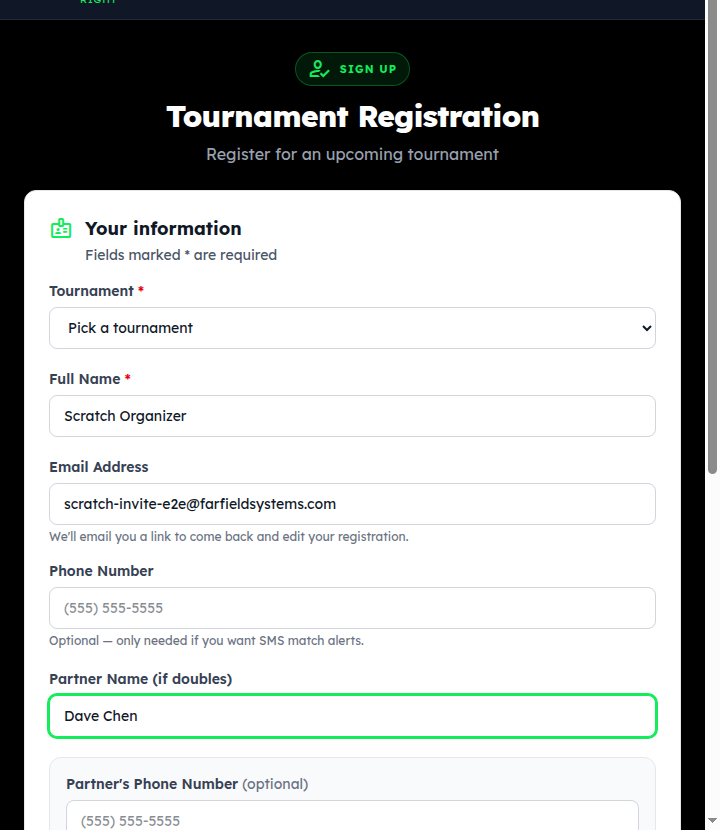
While the registration window is open, the public page has a Register to play button. Registration is for members (a free account), so the player signs in, picks the tournament and division, adds a partner for doubles, and optionally a phone number for match-time texts.
Confirm them into a division
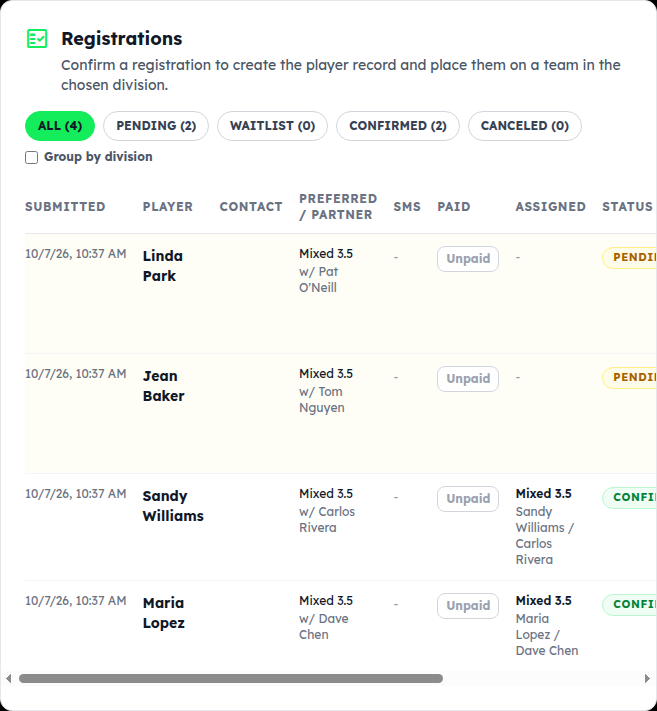
Open Registrations. New sign-ups arrive as PENDING. For each one, pick the division and tap Confirm — that creates the player and their team in that division. Waitlist holds a spot in line; Cancel drops it. The Paid toggle is your own bookkeeping for fees you collect elsewhere.
- Walk-up or phone sign-up? Add player at the top takes a name, partner and division and can confirm in one tap.
- Have a list? Import from CSV/Excel.
- Group by division is handy once the list gets long.
Text everyone who registered
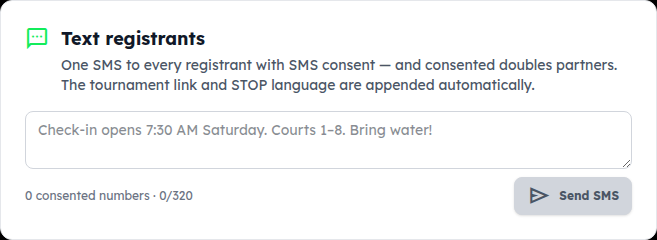
Text registrants sends one SMS to every registered player (and consented partner) — check-in time, a schedule change, a rain call. The tournament link and opt-out language are added for you.
6. Teams & courts
Teams come from confirmations
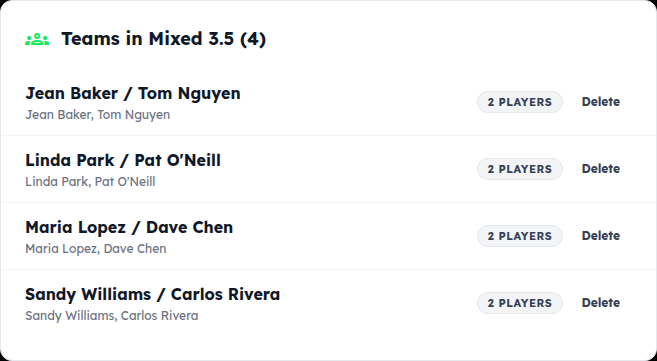
Teams shows each division's teams. Online registration is the normal way they get here — every confirmation adds one — so you usually just check the list.
Add a team by hand
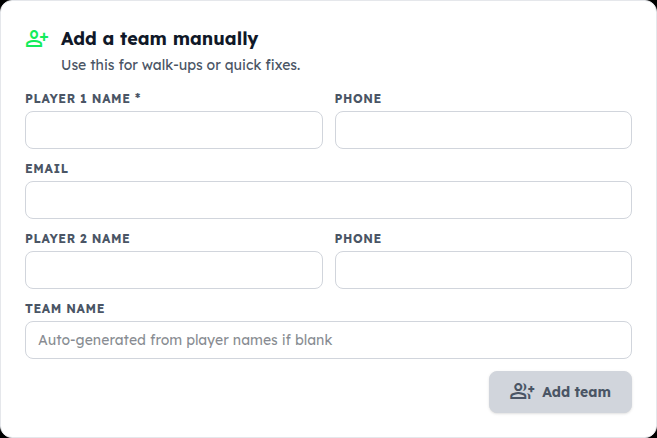
For a quick fix on the day, Add a team manually: player names, optional contact, and a team name (auto-made from the names if blank). There's a CSV paste box below it for a batch.
Set your court count
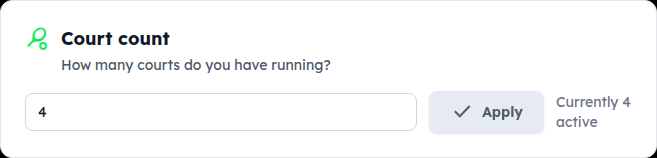
Courts: type how many courts you have and tap Apply. That's enough for most events. Big venues can also group courts (“Men's courts”, “Mixed courts”) and pin divisions to groups; the 9-court preset does that in one tap.
7. Generate pools & brackets
Pick the division and generate
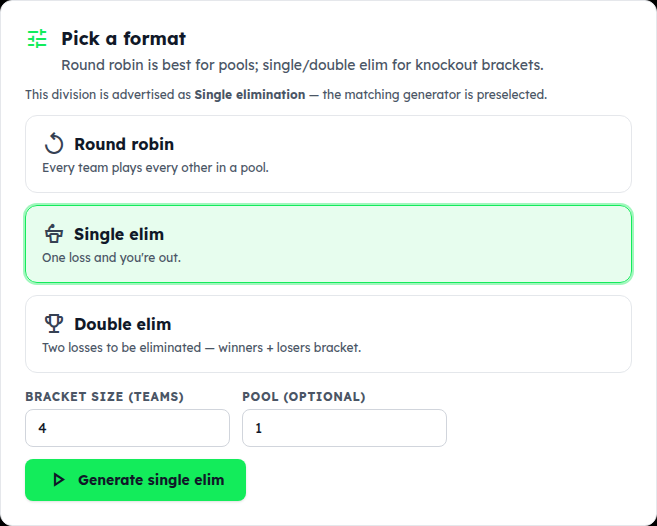
Open Schedule and tap the division. The format you advertised is preselected.
- Round robin builds a pool where every team plays every other — any number of teams.
- Single / double elim builds a knockout bracket of 4, 8 or 16 teams. The size defaults to what the division can fill. With a pool played first, the bracket takes the top teams by pool standing; without one, by sign-up order.
Tap Generate. For pool-into-bracket divisions: generate the round robin, play it, then come back and generate the bracket.
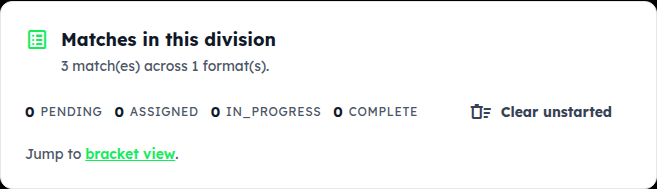
Matches are ready
The match count shows under the card. Jump to bracket view opens the public bracket for that division; Clear unstarted wipes matches that haven't been played so you can regenerate.
8. Run the day: assign courts, enter scores
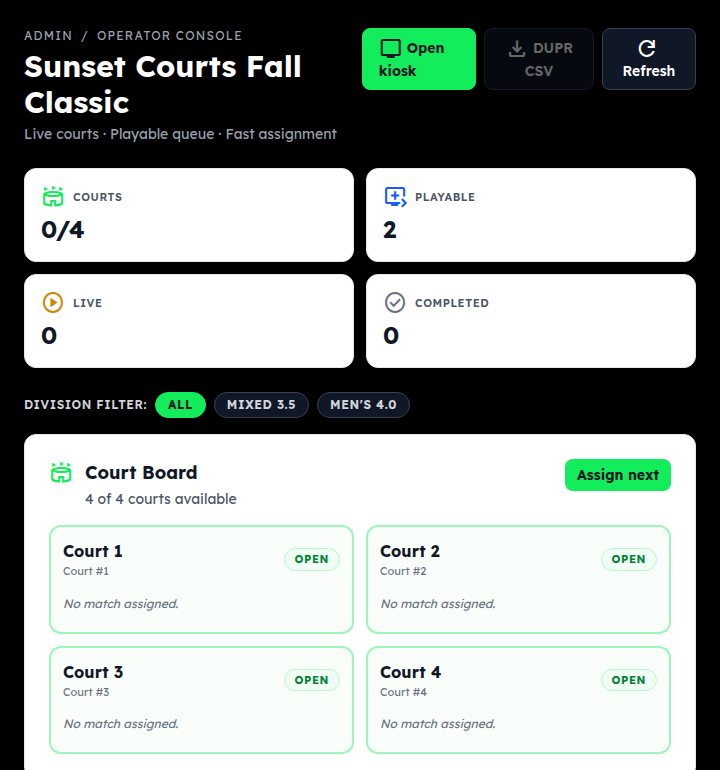
Open the console
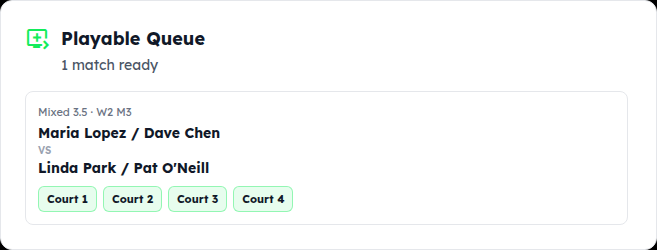
Run in the tab row (or Open operator console on the overview) is the screen for the day. Top: how many courts are busy, how many matches are ready, live, and done. Court Board shows every court; Playable Queue lists the matches whose teams are both known.
Tap Assign next to put the next match on the first open court — or tap a specific court button under a match in the queue. Players with a phone number on file get a text when their match is assigned.
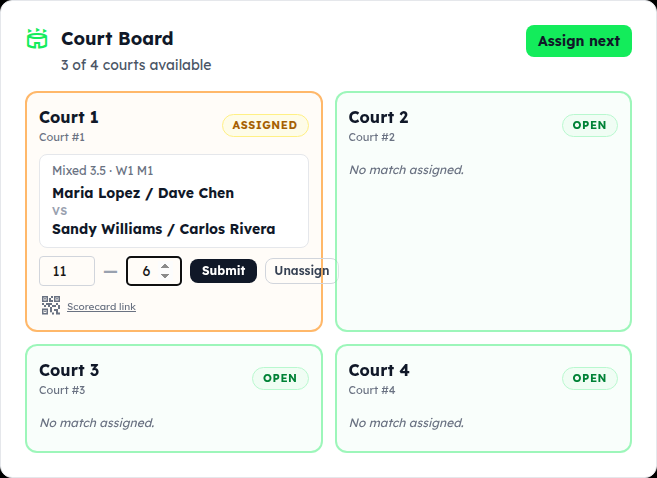
Enter the score on the court card
When a match finishes, type both scores on its court card and tap Submit. The court frees up, the winner moves on, and the next round's match appears in the queue as soon as both of its teams are known. Unassign takes a match back off a court; Scorecard link is a page for the players or a court monitor to enter the score themselves.
Brackets fill in by themselves
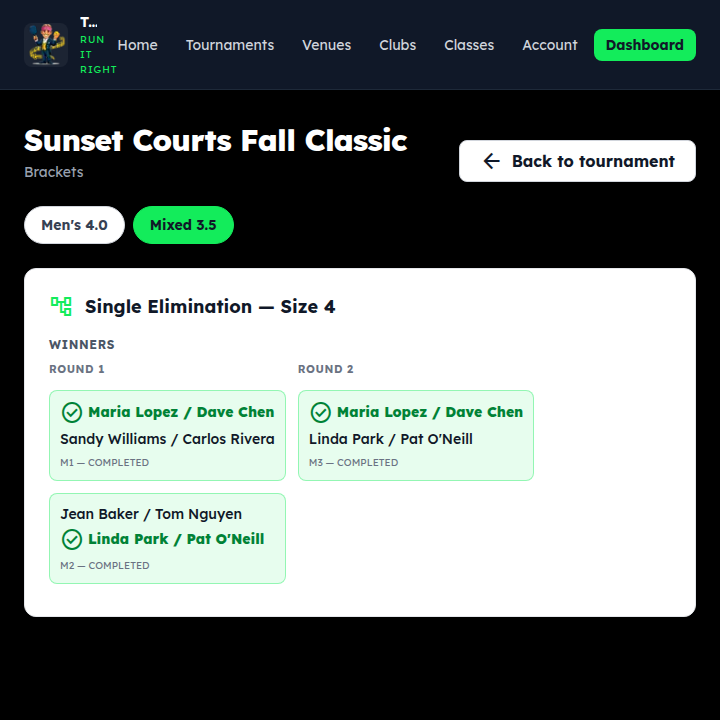
Score the semis and the final shows up with the right teams. No drawing lines on a whiteboard.
Results, and the scoreboard for the venue
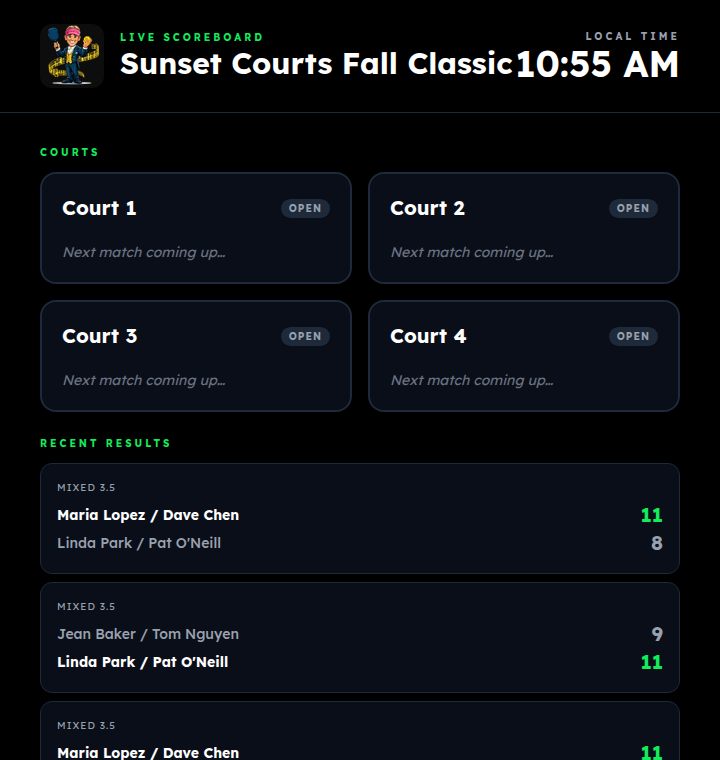
Recently Completed at the bottom of the console lists every finished match with its score and winner. Open kiosk opens the live scoreboard — put it on a TV or a laptop at the desk; it refreshes itself every 15 seconds. DUPR CSV exports results for DUPR.
Go live, and close when it's over
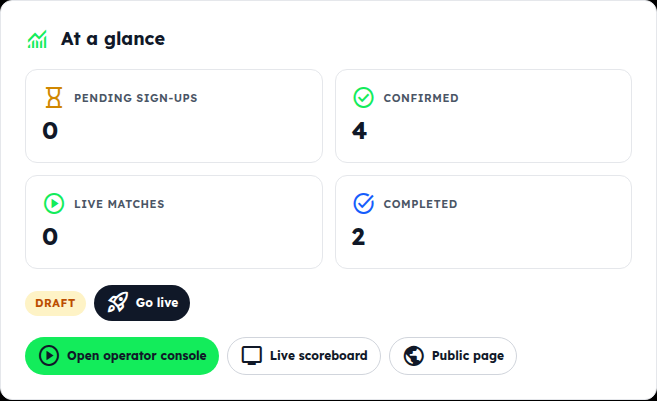
On the overview, Go live marks the tournament in progress on its public page; Close event marks it finished. The At a glance card is the same counters as the console, for a quick look between matches.
9. Players: find, register & follow the bracket
Find it, register, follow the bracket
Approved tournaments are under Tournaments (filter by state or search). Open one for the dates, venue and directions, divisions and policies. Register to play needs a free member account — one account covers every tournament. After you register, you get an email with a link to edit your entry; add your phone and tick the box if you want a text when your match is called.
On the day, the tournament page's Brackets view shows your division's draw and results as they happen, and the venue scoreboard shows what's on each court.
Something not covered? Contact support or go back to the guide home.